
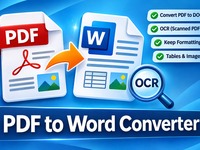
PDF to WORD Converter
Convert PDF documents into editable Word files with GoodieTools PDF to Word Converter. Extract text, recognise scanned pages with OCR, and preserve headings, simple tables and page breaks. Free, browser-based and designed with privacy in mind.
The converter reconstructs editable text, headings and simple tables. Complex columns, unusual fonts and intricate layouts may need manual adjustment in Word. Page snapshots can be added as a visual reference. Privacy: your PDF is processed in this browser and is not uploaded to DesktopGoodies. PDF, Word and OCR engine files may be loaded from their public CDNs; OCR language data is downloaded when needed.
Tutorial
How to Convert PDF to Word
- Choose a PDF file
Open PDF to Word Converter and drag your PDF into the upload area, or click to browse for a file.
- Review the document
The tool analyses your PDF and displays information about the document, including the number of pages and extracted text.
- Enable OCR if needed
If your PDF contains scanned pages, enable OCR to recognise text from the page images. Select the appropriate language, such as English or Swedish.
- Choose conversion settings
Adjust the available options:
- Keep page breaks.
- Detect headings and bold text.
- Detect simple tables.
- Preserve line breaks.
- Add original page snapshots as visual references.
- Preview the extracted text
Review the text before converting. This helps you identify pages where text recognition may need improvement.
- Convert to Word
Click Convert to Word (.docx). Your editable Word document will be generated and downloaded automatically.
- Edit your document
Open the downloaded DOCX file in Microsoft Word or another compatible word processor.
Tips for Better Results
- Use clear, high-quality PDF documents for the best results.
- Select the correct OCR language for scanned documents.
- Complex layouts, columns and tables may need some manual adjustment.
- Scanned documents can take longer to process.
Privacy: Your PDF is processed locally in your browser. It is not uploaded to the DesktopGoodies server.