Rotate & Flip Image
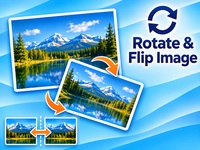
Rotate and flip images quickly with a simple browser-based tool. Rotate photos left or right, turn them 180 degrees, mirror them horizontally or vertically, preview your changes and download the finished image without uploading it to a server.
Your image is processed locally in your browser. It is not uploaded to our server.
Tutorial
1. Open Rotate & Flip Image
Open Rotate & Flip Image to start editing a picture. The tool works directly in your browser, so you do not need to install additional software or create an account.
You can rotate images, mirror them horizontally or vertically, preview the result and download the edited file.
2. Upload an image
Select an image from your computer or drag and drop it into the upload area.
Supported formats include:
- JPG / JPEG
- PNG
- WebP
After uploading, the original image is displayed so you can see what you are working with.
3. Rotate your image
Use the rotation controls to change the image orientation.
The available options are:
- Rotate 90° Left: Turns the image 90 degrees counterclockwise.
- Rotate 90° Right: Turns the image 90 degrees clockwise.
- Rotate 180°: Turns the image upside down.
You can apply rotation controls repeatedly if you need a different orientation.
4. Flip or mirror your image
The flip controls let you create a mirrored version of your picture.
Flip Horizontally
Reverses the image from left to right. This is useful for correcting a mirrored photo or creating a horizontal reflection.
Flip Vertically
Reverses the image from top to bottom. This can be useful for correcting an upside-down or vertically mirrored image.
You can combine rotation and flipping to achieve the desired result.
5. Preview and reset your changes
The preview lets you check the edited image before downloading it.
Compare the original image with the result to make sure the orientation is correct.
If you want to start again, use Reset to return to the original image orientation and remove the applied transformations.
6. Choose the output format
Before downloading, select the format you want to use.
You can keep the original image format or choose another available output format.
Consider using JPG for photographs, PNG when transparency is important, or WebP when you want a modern format with efficient file sizes.
7. Download your image
When the result looks correct, select Download Image.
The edited image is saved to your computer and is ready to use in documents, websites, presentations or social media.
Tips for rotating and flipping images
- Use 90-degree rotation to correct portrait and landscape orientation.
- Use horizontal flipping to reverse text or objects in mirrored photos.
- Use vertical flipping when an image needs to be turned upside down.
- Check the preview before downloading.
- Keep an untouched copy of important original images.
- Remember that rotating or flipping changes the image orientation, not its visual quality.
Privacy
Image processing takes place directly in your browser. Your images do not need to be uploaded to a server, making the tool convenient for quick edits and everyday image adjustments.