PDF Splitter
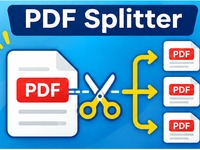
Split PDF files easily with this free online tool. Extract selected pages or divide an entire PDF into separate files. Fast, simple and processed directly in your browser.
Separate a PDF into individual pages or extract the page range you need. Privacy: Your PDF is processed locally in your browser. It is not uploaded to our server.Split PDF Files
Tutorial
1. Upload your PDF file
Click Choose PDF File or drag and drop a PDF document into the tool.
The tool supports PDF files up to 100 MB.
2. Choose a splitting method
You have two options:
- Extract page ranges: Create a new PDF containing only the pages you select.
- Split every page: Create a separate PDF file for each page in the original document.
3. Select the pages
If you choose Extract page ranges, enter the page numbers in the input field.
You can enter individual pages or ranges. For example:
1-3, 5, 8-10
This extracts pages 1, 2, 3, 5, 8, 9 and 10 into one new PDF.
If you choose Split every page, the entire document will be divided automatically.
4. Split and download
Click Split PDF to start processing.
When extracting page ranges, the new PDF downloads directly to your computer.
When splitting every page, the tool creates a ZIP file containing all the individual PDF documents.
Tips
- Check your page numbers before starting.
- Use page ranges to extract several sections at once.
- Splitting every page is useful when you need separate documents.
- Your PDF is processed locally in your browser and is not uploaded to a server.
- Keep the original PDF until you have checked the results.