Printable Calendar Generator
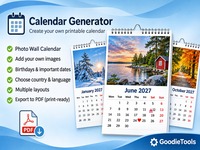
Create beautiful printable calendars with your own photos, birthdays and important dates. Design a personalized 12-month photo wall calendar, customize every month individually, and export a high-quality PDF ready for printing.
Photo Wall Calendar
Create a personal calendar with your own photos, important dates and print-ready pages.
Important dates
Add birthdays, anniversaries and other events. They stay separate from monthly photos.
January
Changes apply only to this month.
Your photos and calendar data stay in this browser. Export a project backup to continue on another device. PDF export is generated locally.
Calendar Generator Tutorial
Create your own printable calendar or design a personalized photo wall calendar using your favorite pictures. Customize individual months, add birthdays and important dates, choose your preferred layout, and export your finished calendar as a PDF.
1. Choose Your Calendar Type
The Calendar Generator offers two main calendar types.
Standard Calendar
Create a traditional calendar without monthly photographs. This option is suitable for simple monthly or yearly calendars.
Photo Wall Calendar
Create a personalized wall calendar using twelve individual photographs, one for each month. You can customize every month separately, making it easy to create a calendar for family, friends, holidays or personal use.
2. Configure Your Calendar Settings
Before editing your calendar, select the basic settings.
Calendar Year
Choose the year for your calendar. You can create calendars for the current year or future years.
Country and Public Holidays
Select the country whose public holidays you want to display. The country selection is independent of the interface language.
Language
Choose the language used for month names and calendar labels.
Week Starts On
Choose whether your calendar week begins on Monday, Sunday or Saturday.
Page Format
Select your preferred paper format:
- A4
- US Letter
- Square 30 × 30 cm
Orientation
Choose portrait or landscape orientation where supported by the selected format.
3. Create Your Photo Wall Calendar
Select Photo Wall Calendar to create a personalized calendar with your own photographs.
The calendar contains twelve individual month sections, from January to December.
Each month has its own editing controls. You do not need to complete all twelve months at once.
You can work on January, save it, and return later to edit February or any other month.
4. Upload and Edit Monthly Photos
Open the month you want to edit and choose a photograph from your device.
Supported image formats include JPG, PNG and WebP.
For each month, you can:
- Upload a photograph.
- Replace an existing photograph.
- Remove the photograph.
- Adjust how the photograph fits the available space.
- Add an optional photo caption.
- Change the calendar title.
- Choose a theme color.
- Select the monthly layout.
Photo positioning
Choose how the photograph should appear:
- Fill Frame: The photograph fills the available area. Some cropping may occur.
- Fit Entire Photo: The complete photograph remains visible.
Monthly layouts
Depending on the selected layout, you can place the photograph above the calendar, beside the calendar or use it as a background.
Remember to save your changes before closing the month editor.
5. Add Birthdays and Important Dates
Use the Events and Important Dates section to add personal events to your calendar.
You can add:
- Birthdays
- Anniversaries
- Weddings
- Family celebrations
- Holidays
- Appointments
- Other important dates
For each event, enter:
- Event name
- Date
- Optional symbol or emoji
- Recurrence setting
Recurring events
Choose Every Year for birthdays and anniversaries that repeat annually.
Choose Only This Year for one-time events.
Events are stored separately from monthly photographs. Replacing a photograph will therefore not remove your birthdays or other important dates.
Events appear in the corresponding monthly calendar.
6. Customize the Calendar Design
Personalize the appearance of your calendar.
Depending on the available design settings, you can adjust:
- Main theme color
- Accent color
- Calendar layout
- Photo placement
- Month titles
- General appearance
Try different combinations before exporting your calendar.
The aim is to create a consistent design across all twelve months while allowing individual monthly customization.
7. Preview Your Calendar
Before creating the final PDF, review all twelve months.
Check that:
- Every month has the correct photograph.
- Images are positioned correctly.
- Captions and titles are correct.
- Birthdays and important dates appear on the correct days.
- The selected year is correct.
- The calendar uses the intended country, language and week start.
You can reopen and edit any month at any time.
8. Export Your Calendar as a PDF
When you are satisfied with your calendar, use the PDF export option.
The generated PDF is intended for printing and sharing.
For a photo wall calendar, review the page order and ensure that all twelve months are included.
Important for professional printing
Print requirements differ between printing services. Check the printer’s requirements for:
- Final paper dimensions
- Image resolution
- Bleed and trim margins
- Binding and hanging space
- Color profile
A photograph should have sufficient original resolution for the selected print size. Enlarging a small image does not create additional image detail.
9. Save Your Project and Continue Later
Your calendar project is saved locally in your browser.
This allows you to close the page and continue editing later using the same browser and device.
For additional safety, use Export Project Backup to download a copy of your calendar project.
To continue on another device or restore a previous project:
- Open the Calendar Generator.
- Select Import Project Backup.
- Choose your previously exported project file.
- Continue editing your calendar.
Keep a backup of your project, especially when it contains many photographs.
Important: Clearing browser data or using a different browser may remove access to locally saved project information. Export a backup regularly.
10. Tips for a Beautiful Photo Wall Calendar
Choose high-quality photographs
Use original photographs with sufficient resolution for your chosen print size.
Keep a consistent visual style
Choose photographs with complementary colors and a similar visual mood.
Consider seasonal photographs
Winter landscapes work beautifully for January, spring flowers for April and May, summer scenes for July, and autumn colors for October.
Check every month
Because every month can be edited independently, take the time to review all twelve before exporting.
Keep your project backup
Save a backup before making major changes or moving to another device.
Frequently Asked Questions
Can I change a photograph after editing a month?
Yes. Open the month again and replace the photograph. Other months remain unchanged.
Can I use the same photograph for several months?
Yes. You can upload the same photograph wherever you want to use it.
Can birthdays repeat every year?
Yes. Select the yearly recurrence option when creating an event.
Can I create a calendar without photographs?
Yes. Choose Standard Calendar instead of Photo Wall Calendar.
Are my photographs uploaded to a server?
Photographs and project data are processed and stored locally in your browser. They are not uploaded to the website as part of the calendar editing process.
Can I print my calendar professionally?
Yes. You can export a PDF and take it to a printing service. Always check that service’s specifications before ordering.
Can I continue editing after exporting a PDF?
Yes. The PDF export does not lock your project. You can return to any month, make changes and export a new PDF.