
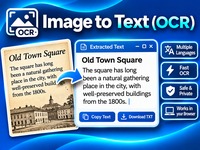
Image to Text (OCR)
Extract text from images with Image to Text (OCR). Convert printed text in photos, screenshots and scanned documents into editable text. Supports multiple languages, including: English, Swedish, Arabic and Chinese and more. Copy or download the extracted text, with processing directly in your browser.
Your image is processed in your browser. It is not uploaded to our server. The OCR language data is downloaded when needed.
Tutorial
1. Upload an image
Click Choose Image and select a photo, screenshot or scanned document containing text. Supported image formats include JPG, PNG, WebP, BMP and TIFF.
2. Select the recognition language
Choose how the OCR tool should recognize the text:
-
Automatic: Uses your browser’s language setting to select the OCR language.
-
Manual selection: Choose the actual language in your image from the language list. For example, select Russian if your image contains Russian text, even if your browser is set to English.
Important: Automatic does not detect the language directly from the image. For the best results, select the correct language manually when you know it.
3. Extract the text
Click Extract Text to start the recognition process. A progress indicator shows how the OCR engine is processing your image.
4. Review the result
When processing is complete, the recognized text appears in the text field. Read through it and correct any recognition errors if necessary.
5. Copy the extracted text
Click Copy Text to copy the result to your clipboard. You can then paste it into a document, email or other application.
6. Download as a text file
Click Download TXT to save the extracted text as a .txt file on your computer.
Tips for better results
-
Use clear, sharp images with good lighting.
-
Make sure the text is not too small or blurry.
-
Avoid tilted images whenever possible.
-
Select the correct language manually for better recognition accuracy.
-
Handwritten text may not be recognized as accurately as printed text.