Video to GIF Converter
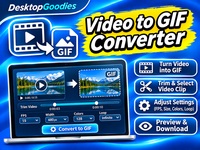
Convert video clips into animated GIFs directly in your browser. Trim your videos, customize frame rate, image width, colors and looping options, then preview and download your GIF without uploading files to a server.
Keep clips short for faster conversion and smaller GIF files. The selected section can be up to 30 seconds.
Select a video to get started.
Video processing happens locally in your browser. Files are not uploaded to our server. Maximum input size: 100 MB.
Tutorial
Video to GIF Converter lets you turn short video clips into animated GIFs directly in your browser. Customize the output, select the section you want to convert, and download your finished animation.
1. Upload a Video
- Open Video to GIF Converter.
- Drag and drop a video into the upload area or browse your device.
- Wait for the video to load.
- Preview the video before selecting a clip.
The maximum supported video size is 100 MB, and the maximum video duration is 30 seconds.
2. Select the Video Section
- Use the trimming controls to choose your start time.
- Set the end time.
- Check the selected duration.
- Preview the section you want to convert.
Shorter clips generally produce smaller GIF files.
3. Adjust the Frame Rate
Choose the number of frames per second (FPS).
- 5 FPS: Smaller files and simple animations.
- 10 FPS: Good for basic animations.
- 15 FPS: A balanced setting for most GIFs.
- 20 FPS: Smoother motion.
- 24 or 30 FPS: More fluid animation, but larger files.
4. Choose the Output Size
Select the desired GIF width.
Available options include 240, 320, 480, 640 and 800 pixels.
Smaller dimensions reduce file size and are often suitable for websites and social media.
5. Adjust Colors and Looping
Choose the color palette size:
- 32 colors
- 64 colors
- 128 colors
- 256 colors
More colors can improve visual quality but may increase file size.
You can also select how the GIF should loop, depending on the available options.
6. Convert Your Video
- Review your settings.
- Click the conversion button.
- Follow the progress indicator.
- Wait for the GIF to finish processing.
Processing time depends on the video, selected quality and your device.
7. Preview and Download
- Play the generated GIF.
- Check the animation and image quality.
- Download the finished GIF to your device.
Tips
- Use short clips for smaller GIF files.
- Start with 15 FPS and 480 pixels wide.
- Reduce the number of colors if the GIF becomes too large.
- Use higher frame rates when smooth motion is important.
- Remember that GIF files can become considerably larger than the original video segment.