Image Crop
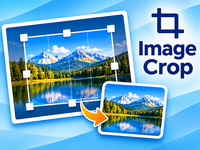
Crop images to exact pixel dimensions. Choose popular formats such as TikTok, Instagram and YouTube, or enter your own custom size.
Image Crop
Upload an image, position the crop area and download your result. Your image stays on your device.
Drag the crop box to position it. Use the corner handles to resize it. Preset formats keep their proportions.
How to Use Image Crop
Image Crop lets you crop images online to the exact size and proportions you need. Create images for websites, social media, profile pictures and more, directly in your browser.
Step 1: Upload Your Image
- Open the Image Crop tool.
- Select an image from your computer.
- Wait for the image to appear in the editing area.
Your image is processed locally in your browser. It is not uploaded to our servers.
Step 2: Select Your Crop Area
- Use the crop selection frame to mark the area you want to keep.
- Drag the frame to move the selection.
- Drag the corner handles to resize the selection.
- Adjust the frame until you are happy with the result.
Only the area inside the selection frame will be included in your cropped image.
Step 3: Choose Your Image Size and Format
- Select your preferred output dimensions.
- Choose the aspect ratio or enter custom pixel dimensions when available.
- Select the output image format.
- Review your crop before downloading.
You can use custom dimensions for specific purposes, such as social media posts, profile pictures or website graphics.
Step 4: Crop and Download
- Check that the selected area looks correct.
- Click the crop or download button.
- Save your finished image to your computer.
Your cropped image is now ready to use!
Private and Secure
Image Crop processes your image locally in your browser. Your original image remains unchanged, and your files are not uploaded to our servers.
No installation, no registration and no subscription required. Just upload, crop and download!