
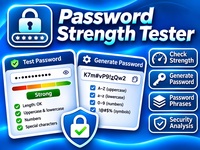
Password Strength Tester & Generator
Check how strong your passwords are and create secure, random passwords in seconds. Analyze password security, identify weaknesses, generate custom passwords and passphrases, and keep everything private with local browser-based processing.
Your passwords never leave your device. Nothing is uploaded or saved.
Tutorial
Password Strength Tester helps you evaluate existing passwords and generate strong, random passwords. All password processing takes place locally in your browser.
1. Test Your Password
- Open the Test Password tab.
- Enter your password in the input field.
- Use the visibility icon to show or hide the password.
- Check the strength indicator to see the overall result.
- Review the security analysis for potential weaknesses.
2. Understand Your Password Strength
The tester evaluates several characteristics, including:
- Password length
- Uppercase and lowercase letters
- Numbers and special characters
- Repeated characters
- Common password patterns
- Predictable sequences
The result is displayed using five strength levels, from Very Weak to Very Strong.
3. Improve Your Password
If your password receives a low rating:
- Increase its length.
- Avoid common words and predictable combinations.
- Avoid repeated characters and simple sequences.
- Use a unique password for each account.
- Consider using a randomly generated passphrase.
4. Generate a Secure Password
- Open the Generate Password tab.
- Select your preferred password length.
- Choose whether to include uppercase letters, lowercase letters, numbers, and special characters.
- Enable the option to exclude similar-looking characters if desired.
- Generate a new password.
- Copy the result when you are satisfied.
5. Generate a Passphrase
You can also create a passphrase using randomly selected words.
- Select the passphrase generator.
- Choose the number of words.
- Generate a new combination.
- Copy the result for use with your account.
Long, randomly generated passphrases can be both secure and easier to remember.
6. Protect Your Privacy
Your passwords are processed locally in your browser. They are not uploaded to a server or stored by the tool.
For additional security, never share your passwords and avoid reusing the same password across multiple websites.
Tips
- Use long, unique passwords whenever possible.
- Consider a reputable password manager.
- Enable two-factor authentication on important accounts.
- Never use personal information in passwords.
- Remember that a strength score is an estimate, not a guarantee of security.